Intent
The Intent component in Sketchware Pro is your app's primary communication tool. Whether you want to open another screen inside your app, pass data between activities, open an external webpage in Chrome, or share content with other apps on the device, the Intent component makes it possible.
Think of an Intent like an envelope or postal letter: you address where it should go, pack information inside it, specify instructions for how it should be delivered, and send it on its way.
Adding the Intent Component
To use Intent blocks in your project, you first need to add an Intent component:
- Open your project in Sketchware Pro.
- In the navigation bar, tap on the Component tab.
- Tap the floating (+) button in the bottom right corner.
- Select Intent from the component list.
- In the dialog, enter a Component name (such as
iorintent) and tap Add.
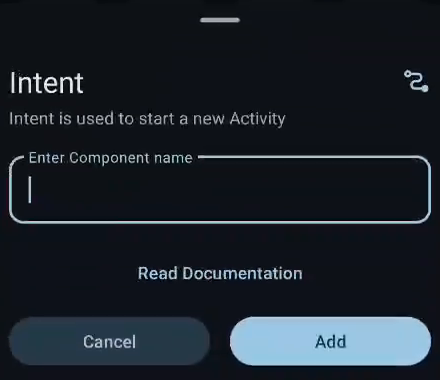
Once added, open any event editor (like onCreate or a button's onClick), select the Component category in the block palette, and you will find all the Intent blocks ready to use.
Intent Blocks
Intent : [intent] setAction [intentAction]

Tells your Intent what general task or job you want it to perform. For example, you can tell it to view a webpage (ACTION_VIEW), dial a phone number (ACTION_DIAL), or send text or photos to another app (ACTION_SEND).
Under the hood, this sets the action string on the underlying android.content.Intent object via intent.setAction(Intent.ACTION_VIEW). Android's Intent Resolution mechanism evaluates this action string against <intent-filter> declarations defined in the AndroidManifest.xml files of installed apps to identify which applications can handle the requested operation.
intent.setAction(Intent.ACTION_VIEW);
Common Actions:
ACTION_VIEW: Displays data to the user (web URLs, map locations, video streams).ACTION_DIAL: Opens the phone dialer with a specific number filled in.ACTION_SEND: Shares content (text, files, media) with other apps.ACTION_EDIT: Requests that the target data be opened for editing.
Intent : [intent] setData [data]

Attaches the specific link, phone number, or data location that you want your Intent to work with. If you set the action to view something, this block is where you specify the exact URL (like https://sketchware.pro) or phone URI (like tel:123456789).
Technically, this parses the supplied string into an android.net.Uri and assigns it to the Intent using intent.setData(Uri.parse(dataString)). The URI scheme (e.g., https://, tel:, mailto:, geo:) guides the Android OS in routing the request to the correct system handler. Note that invoking setData() clears any MIME type previously assigned via setType().
intent.setData(Uri.parse("https://sketchware.pro"));
Intent : [intent] setType [type]

Specifies the kind of data or file format you are sending so the phone knows which apps can open it. For example, if you are sharing plain text you specify text/plain, and if you are sharing an image you specify image/jpeg or image/*.
In Android, this method explicitly configures the MIME (Multipurpose Internet Mail Extensions) type by executing intent.setType(mimeType). For implicit intents—particularly ACTION_SEND and ACTION_SEND_MULTIPLE—the MIME type is mandatory for Android to filter candidate apps whose intent filters accept that specific data format.
intent.setType("text/plain");
Intent : [intent] setScreen Context : [context]

Tells the Intent which screen inside your own app you want to open next. You select your Intent component, pick your current activity context, and choose your destination activity screen from the dropdown menu.
This converts the Intent into an explicit Intent by calling intent.setClass(getApplicationContext(), TargetActivity.class). Explicit intents specify the exact destination class within the application package, bypassing the Android package manager's intent filter matching and routing execution directly to the specified Activity lifecycle.
intent.setClass(getApplicationContext(), SecondActivity.class);
Intent : [intent] set app package [package]

Forces your Intent to open one specific app on the device instead of letting the user choose from a popup menu. You provide the app's unique package name (like com.google.android.youtube for YouTube or com.whatsapp for WhatsApp).
Programmatically, this calls intent.setPackage("com.example.app"). It restricts the Intent resolution to only the application matching that package name. If the specified package is not installed on the user's device, calling startActivity() will throw an ActivityNotFoundException, so verify the package is installed before launching.
intent.setPackage("com.google.android.youtube");
Intent : [intent] putExtra key [key] value [value]

Packs extra information inside your Intent before sending it off to another screen. You assign a label name (the key, like "username") and provide the information (the value, like "Alex"), so the next screen can read and use it.
Under the hood, this stores the key-value pair into the Intent's internal android.os.Bundle dictionary using intent.putExtra(key, value). When the target Activity launches, it can read this data back using getIntent().getStringExtra(key) or Sketchware Pro's Activity getExtra key block.
intent.putExtra("username", "Alex");
Intent : [intent] removeExtra key [key]

Removes a specific piece of information from your Intent before it gets launched. If you previously packed data under a key and changed your mind or need to reset the payload, this block removes that key completely.
This calls intent.removeExtra(key) on the underlying Intent instance. It deletes the entry from the internal Bundle, ensuring that subsequent calls to hasExtra(key) return false and avoiding accidental propagation of stale data when reusing an Intent object across multiple events.
intent.removeExtra("username");
Intent : [intent] setFlags intentFlags : [intentFlags]

Sets special rules for how the new screen should be opened and managed by Android. For example, you can tell Android to clear all previous screens from memory so the user cannot press the Back button to return to them (ideal for a Login or Splash screen).
In the Android runtime, this invokes intent.setFlags(flags) (such as Intent.FLAG_ACTIVITY_CLEAR_TOP, Intent.FLAG_ACTIVITY_SINGLE_TOP, or Intent.FLAG_ACTIVITY_NEW_TASK). These flags directly manipulate the task backstack and activity launch mode, governing whether an existing activity instance is brought to the foreground or completely recreated.
intent.setFlags(Intent.FLAG_ACTIVITY_CLEAR_TOP);
Common Flags:
FLAG_ACTIVITY_CLEAR_TOP: If the target activity is already running in the current task, all activities sitting on top of it are closed, bringing it to the front.FLAG_ACTIVITY_SINGLE_TOP: If the target activity is already at the top of the stack, it will not be re-created; instead, itsonNewIntent()callback is triggered.FLAG_ACTIVITY_NEW_TASK: Starts the activity in a new, separate task stack.
StartActivity Intent : [intent]

Actually executes the Intent and launches the screen or external action! Once you have finished setting your screens, links, actions, and extras, placing this block triggers the transition immediately.
Technically, this executes startActivity(intent) on the current Activity context. The Android operating system validates the intent, resolves the target component, pauses the current screen (onPause), and initializes the destination Activity through its standard lifecycle (onCreate -> onStart -> onResume).
startActivity(intent);
StartActivity Intent : [intent] with Chooser [title]

Launches your Intent and shows a clean system popup menu at the bottom of the screen with a custom header (like "Share this link via"). This lets the user choose which app they want to use each time, rather than automatically opening a default app.
This wraps the intent using the Android factory method Intent.createChooser(intent, title) before passing it to startActivity(). This explicitly bypasses any "Always open with" default app associations configured by the user, guaranteeing that the system bottom sheet dialog is always displayed with your custom prompt title.
startActivity(Intent.createChooser(intent, "Share this link via"));
Practical Recipes
1. Navigating to Another Screen with Data
A classic pattern for opening a profile screen and passing the user's account name:
Intent : intent setScreen Context : MainActivity to ProfileActivityIntent : intent putExtra key "userId" value "12345"StartActivity Intent : intent
On the ProfileActivity screen in onCreate:
- Use
Activity getExtra key "userId"to retrieve"12345"and display it in a TextView.
2. Opening a Website in the Web Browser
To open an external URL in Chrome or any browser:
Intent : intent setAction ACTION_VIEWIntent : intent setData "https://sketchware.pro"StartActivity Intent : intent
3. Sharing Content with the Chooser Popup
To let the user share a text message to WhatsApp, Twitter, or Messages:
Intent : intent setAction ACTION_SENDIntent : intent setType "text/plain"Intent : intent putExtra key "android.intent.extra.TEXT" value "Check out Sketchware Pro!"StartActivity Intent : intent with Chooser "Share post with:"