In Sketchware Pro, View blocks let you control and style every UI element on your app's screen (such as Buttons, TextViews, Layouts, and ImageViews). You can use them to hide/show views, rotate them, animate positions, change colors and borders, add or remove views dynamically, and listen for click or touch events.
Built-in View Blocks
View: [view] setVisible visible: [visible]

Changes whether a view is visible on screen. You can set it to:
VISIBLE: The view is shown normally.INVISIBLE: The view becomes hidden/invisible, but still reserves its space on screen.GONE: The view is completely hidden and its space is collapsed as if it doesn't exist.
visibility of View: [view] equals visible: [visible]

Checks if a view's current visibility state matches VISIBLE, INVISIBLE, or GONE. Returns true if it matches, otherwise false.
View: [view] setElevation ()

Sets the elevation (shadow depth) of a view in density pixels (dp). A higher number gives the view a deeper drop shadow, making it look raised off the screen.
View: [view] setRotation ()
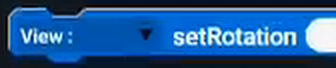
Rotates a view clockwise by a chosen angle in degrees (e.g., 45, 90, 180).
View: [view] getRotation

Returns the current rotation angle of the view in degrees.
View: [view] setAlpha ()
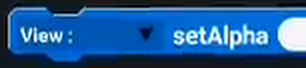
Sets how transparent or opaque a view is. Accepts values from 0.0 (completely invisible / transparent) to 1.0 (fully visible / solid).
View: [view] getAlpha
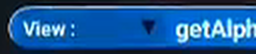
Returns the current opacity (alpha) of the view between 0.0 and 1.0.
View: [view] setTranslationX ()

Shifts the view horizontally to the left or right from its original spot without changing the layout. Positive numbers move it right; negative numbers move it left.
View: [view] getTranslationX

Returns the current horizontal shift distance (translation X) of the view in pixels.
View: [view] setTranslationY ()

Shifts the view vertically up or down from its original spot. Positive numbers move it down; negative numbers move it up.
View: [view] getTranslationY

Returns the current vertical shift distance (translation Y) of the view in pixels.
View: [view] setScaleX ()
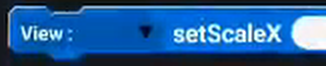
Stretches or shrinks the width of the view. 1.0 is normal size, 2.0 is double width, and 0.5 is half width.
View: [view] getScaleX

Returns the current horizontal scale multiplier of the view.
View: [view] setScaleY ()
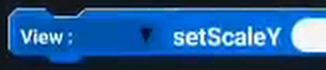
Stretches or shrinks the height of the view. 1.0 is normal size, 2.0 is double height, and 0.5 is half height.
View: [view] getScaleY

Returns the current vertical scale multiplier of the view.
View: [view] getLocationX

Returns the horizontal X coordinate of the view's top-left corner on the screen in pixels.
View: [view] getLocationY

Returns the vertical Y coordinate of the view's top-left corner on the screen in pixels.
View: [view] getHeight

Returns the actual height of the view on screen in pixels.
View: [view] getWidth

Returns the actual width of the view on screen in pixels.
View: [view] requestFocus
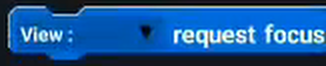
Gives keyboard focus to a view, such as bringing the cursor into an EditText input box so the user can start typing.
View: [view] removeView View: [child]

Removes a specific child view from inside a parent layout (e.g. removing a button from a LinearLayout).
View: [view] removeAllViews

Clears out and removes all child views inside a parent layout in one go.
View: [view] addView View: [child]

Adds a new child view to the end of a parent layout.
View: [view] getChildAt ()

Retrieves the child view at a specific index inside a parent container. Indexing starts at 0 for the first child.
View: [view] addView View: [child] index ()

Inserts a child view into a specific position/index inside a parent layout.
View: [view] setGravity Gravity Vertical: [v] Gravity Horizontal: [h]

Controls how content inside the view is aligned (e.g., Center, Left, Right, Top, Bottom).
View: [view] setColorFilter Color: [c] with PorterDuff [mode]

Tints or paints over an image view with a chosen color using a blending mode (like SRC_IN or MULTIPLY).
View: [view] setBackgroundColor Color: [c]

Sets the solid background color of any view.
View: [view] setBackgroundResource BackgroundImage: [img]

Sets an imported image from your project's Image Manager as the view's background.
View: [view] setBackgroundDrawable drawable: [d]

Sets a custom drawable graphic as the background of a view.
View: [view] setStroke () strokeColor Color: [c]

Adds a colored outline border around a view with the chosen line thickness.
View: [view] setCornerRadius () color Color: [c]

Gives the view rounded corners with a chosen radius and fills it with a background color.
View: [view] setGradientBackground Color: [c1] and Color: [c2]

Applies a smooth color gradient background that blends from the first color into the second color.
View: [view] performClick
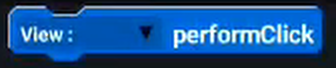
Simulates a finger tap on a view through code, triggering its onClick event just as if the user clicked it physically.
When View: [view] clicked
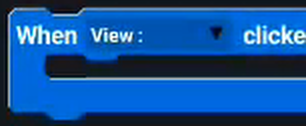
Container event block. Any blocks placed inside will run whenever the specified view is clicked.
When View: [view] long clicked
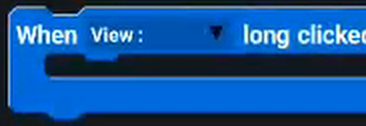
Container event block. Any blocks placed inside will run when the user presses and holds down on the view.
When View: [view] touched
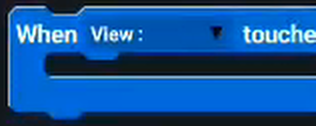
Container event block. Runs whenever a finger touches, moves across, or releases from the view.
View: [view] showSnackbar text [] actionText []

Pops up a quick temporary notification bar (Snackbar) at the bottom of the screen with a message and an optional clickable action button.
Bottom line
That was the explanation for every built-in View block in Sketchware Pro. If you think some info is wrong or doesn't exist, please let us know in our discord server or simply open a Pull Request in our website's GitHub repository.